
If you’ve ever worked on a school assignment, office report, or blog draft, you’ve probably heard the term “double spacing.” It sounds technical, but it’s actually very simple. In this guide, I’ll show you exactly how to double space in Word in different ways—step by step—so you can do it with confidence.
I’ve used Microsoft Word for years, from writing assignments to publishing articles, and double spacing is one of the most common formatting tasks. Once you learn it, you’ll use it all the time.
Let’s break it down in the easiest way possible.
What Does Double Spacing Mean?
Double spacing means adding extra space between lines of text. Instead of lines sitting close together, there is a clear gap between them.
This makes your document:
- Easier to read
- Cleaner to review
- Better for editing or marking
For example, teachers often ask for double spacing so they can write comments between lines.
| Spacing Type | How It Looks | Best Use |
|---|---|---|
| Single Space | Lines are close | Notes, quick writing |
| 1.5 Space | Medium gap | Reports |
| Double Space | Wide gap | Essays, editing |
Why You Should Use Double Spacing in Word
Understanding how to double space in Word is important for many reasons. It’s not just about looks—it improves readability.
Here’s why it matters:
- Teachers require it for assignments
- Editors prefer it for reviewing text
- It makes long content easier on the eyes
- It gives your document a professional feel
From my experience, switching to double spacing instantly makes messy content look organized.
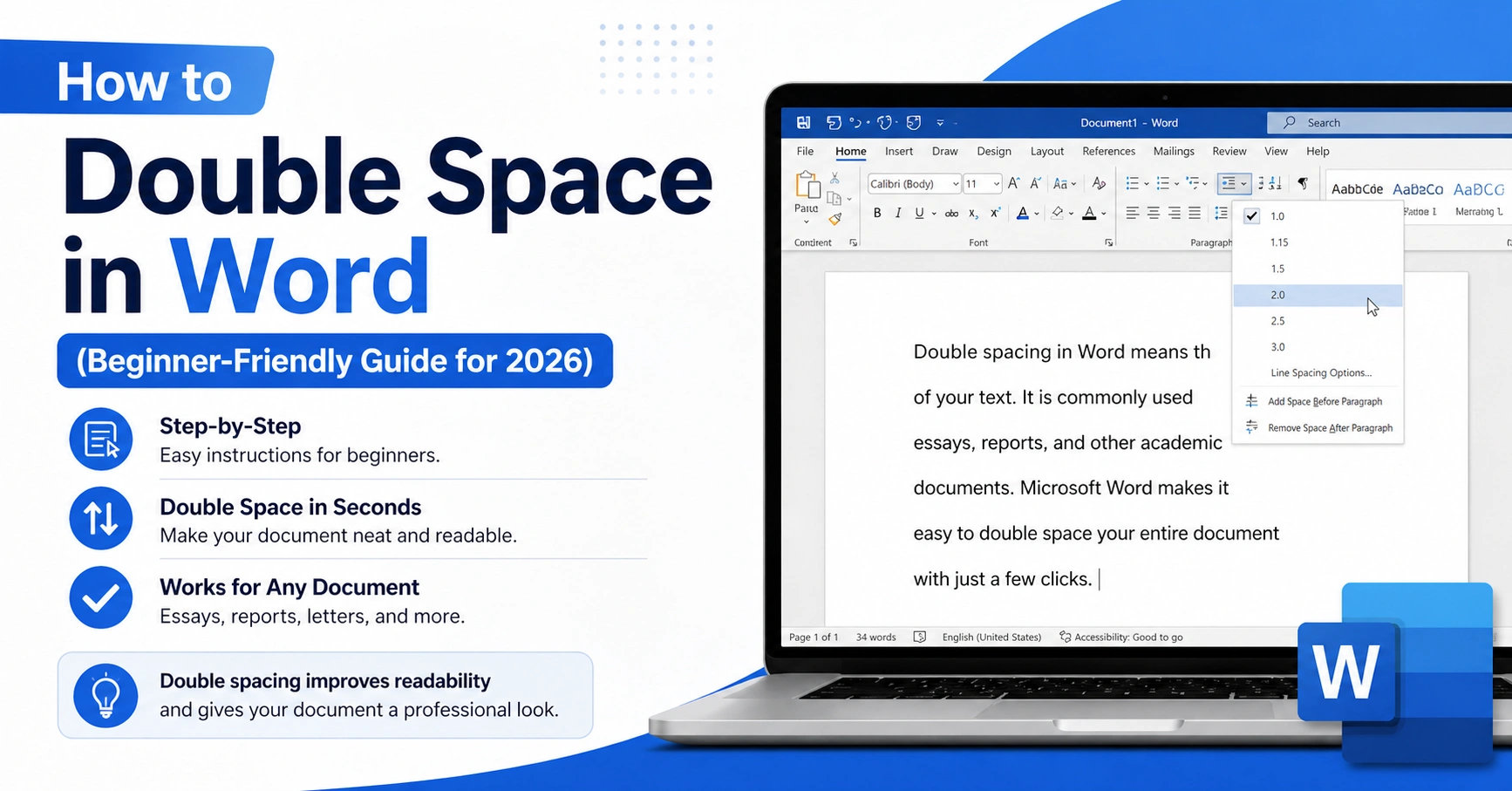
How to Double Space in Word (Quick Method)
Let’s start with the fastest method. This works in most versions of Microsoft Word.
Steps:
- Open your document
- Select the text (Ctrl + A for all text)
- Go to the Home tab
- Click the Line and Paragraph Spacing icon
- Select 2.0
That’s it. You’ve learned how to double space in Word in less than 10 seconds.
How to Make Double Space in Word Using Paragraph Settings
If you want more control, use paragraph settings.
Steps:
- Highlight your text
- Right-click and choose Paragraph
- Find the “Line spacing” option
- Select Double
- Click OK
This method is useful when you need precise formatting.
| Setting Option | What It Does |
|---|---|
| Single | Default spacing |
| 1.5 Lines | Medium spacing |
| Double | Full spacing |
How to Double Space in Microsoft Word Before You Start Writing
Want every new document to be double spaced automatically? You can set it before typing.
Steps:
- Open a new document
- Go to Home → Line Spacing
- Choose 2.0
- Start typing
Now everything you write will follow double spacing.
This is helpful if you often need essays or reports formatted this way.
How to Double Space a Document in Word (Entire File)
If your document is already written, don’t worry.
Steps:
- Press Ctrl + A (select all text)
- Apply double spacing using the spacing button
This is the easiest way to double space a document in Word without editing line by line.
How to Double Space in Word on Mac
Mac users follow slightly different steps, but it’s still easy.
Steps:
- Select your text
- Click Format in the menu
- Choose Paragraph
- Set line spacing to Double
If you use Word on Mac often, this method will become second nature.
How to Double Space in Word Mobile (Android & iPhone)
Working on your phone? No problem.
Steps:
- Open your document in Word mobile
- Tap the edit icon
- Select text
- Tap the formatting option
- Choose Line spacing → 2.0
This is how you double space in Word mobile easily, even on a small screen.
How to Double Space in Word on iPad
The iPad version is similar to mobile but with a bigger interface.
Steps:
- Highlight text
- Tap the formatting brush icon
- Select line spacing
- Choose 2.0
Now your document looks neat and clean.
How to Remove Double Spaces in Word
Sometimes you need the opposite—removing extra spaces.
Steps:
- Select text
- Go to line spacing
- Choose 1.0
Or use Find & Replace:
- Press Ctrl + H
- Find double spaces
- Replace with single space
| Problem | Solution |
|---|---|
| Too much spacing | Switch to 1.0 |
| Uneven spacing | Reset formatting |
| Extra blank lines | Delete manually |
How to Set Double Spacing as Default in Word
If you always use double spacing, save time by making it default.
Steps:
- Open Paragraph settings
- Select Double spacing
- Click Set as Default
Now every new document will follow this format.
Common Mistakes When Double Spacing
Even though it’s simple, people still make small mistakes.
Here are some to avoid:
- Adding blank lines instead of spacing
- Forgetting to select all text
- Mixing spacing styles
- Using Enter key repeatedly
From experience, using the spacing tool is always better than pressing Enter multiple times.
Tips to Make Your Document Look Professional
Knowing how to double space in Word is just one part. Combine it with these tips:
- Use readable fonts like Arial or Times New Roman
- Keep font size 11–12
- Use proper margins
- Align text properly
| Element | Recommended Setting |
|---|---|
| Font | Times New Roman |
| Size | 12 pt |
| Spacing | Double |
| Alignment | Left |
When You Should NOT Use Double Spacing
Double spacing is great, but not always needed.
Avoid it in:
- Resumes
- Short notes
- Emails
- Forms
In these cases, single spacing works better.
Real-Life Example of Double Spacing Use
When I was writing academic content, double spacing helped my editor review my work faster. They could easily add comments between lines.
Students also benefit because teachers can mark corrections clearly.
So learning how to double space in Word isn’t just a technical skill—it’s practical.
FAQs About How to Double Space in Word
1. How do I double space in Word quickly?
Select all text and press Ctrl + A, then choose 2.0 spacing from the Home tab.
2. Can I double space only part of a document?
Yes. Just select the specific text and apply double spacing.
3. Why is my Word document not double spacing properly?
Check if paragraph spacing or extra line breaks are interfering.
4. How to double space in Word on Mac?
Use Format → Paragraph → Line spacing → Double.
5. How to remove double spacing in Word?
Change line spacing back to 1.0 or single spacing.
6. Is double spacing required for essays?
Yes, most schools and universities require it for readability.
Final Thoughts
Now you fully understand how to double space in Word across all devices—Windows, Mac, mobile, and iPad. It’s a simple skill, but it makes a big difference in how your document looks and feels.
If you write essays, reports, or professional content, this formatting step is essential. Once you practice it a few times, it will become automatic.
Start using double spacing today and see how much cleaner your documents look.