
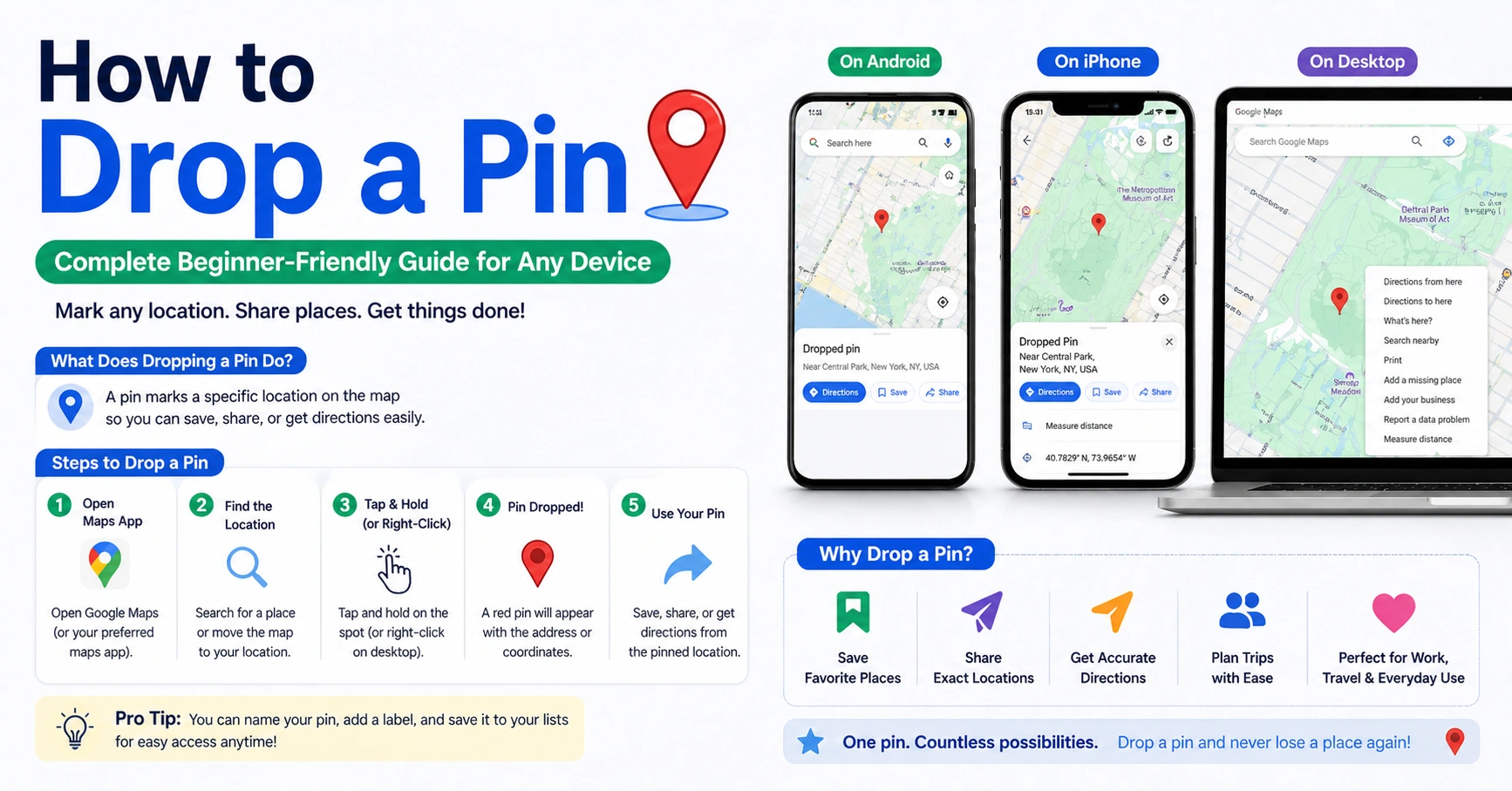
Finding and sharing a location has never been easier. If you’ve ever wondered how to drop a pin, you’re in the right place. Whether you’re meeting a friend, sending your home address, or saving a hidden spot, dropping a pin makes everything simple and precise.
In this guide, I’ll walk you through everything step by step in plain language. You don’t need tech skills. I’ve used these methods myself many times, especially when meeting people in busy areas where exact directions matter. By the end, you’ll feel confident using pins on any device.
What Does It Mean to Drop a Pin?
Dropping a pin means marking a specific place on a map. It works like placing a virtual marker. This marker shows an exact location, even if there is no address.
When you use apps like Google Maps or Apple Maps, the pin helps you save or share locations quickly. You don’t have to type long addresses. Just tap the spot and a pin appears.
I remember once trying to meet a friend in a large park. There was no clear address. Dropping a pin saved time and avoided confusion.
Why You Should Learn How to Drop a Pin
Knowing how to drop a pin can make daily life easier. It’s useful in many situations, not just travel.
You can share your exact location with friends. You can save places you want to visit later. You can even help someone find you in an emergency.
Pins are also helpful for delivery services. Instead of writing long directions, you can simply send a pin.
Here are some common uses:
| Use Case | Benefit |
|---|---|
| Meeting friends | Exact location sharing |
| Travel planning | Save places to visit |
| Food delivery | Avoid wrong addresses |
| Emergencies | Quick location sharing |
How to Drop a Pin on Google Maps
Using Google Maps is the most common way to drop a pin. It works on both phones and computers.
First, open the app. Then find the location you want. Tap and hold on that spot. After a second, a red pin will appear.
Once the pin is placed, a small info box shows up. You can save the location, share it, or get directions.
This is the easiest way to understand how to drop a pin on google maps. It works the same way on both Android and iPhone.
How to Drop a Pin on iPhone
If you’re using an iPhone, you can drop a pin using either Google Maps or Apple Maps.
Open Apple Maps. Then scroll to the location you want. Press and hold the screen. A pin will appear.
You can move the pin if needed. Just drag it slightly to adjust the position.
Learning how to drop a pin on iphone is simple. The steps are almost the same across all apps.
How to Drop a Pin on Android
Android users can also drop pins easily using Android devices.
Open Google Maps. Then zoom in on your location. Tap and hold the screen until the pin appears.
Once placed, you can tap the pin to see options like sharing or saving.
Here’s a quick comparison:
| Step | Android | iPhone |
|---|---|---|
| Open map | Google Maps | Apple/Google Maps |
| Hold location | Yes | Yes |
| Move pin | Yes | Yes |
| Share pin | Easy | Easy |
This makes how to drop a pin on android very straightforward.
How to Drop a Pin on Apple Maps
Apple Maps works a little differently but is still easy.
Open the app. Find your location. Tap and hold on the screen. A purple pin appears.
You can tap “Share” to send the location. You can also add it to your favorites.
Many iPhone users prefer Apple Maps because it works smoothly with iOS.
How to Send a Dropped Pin to Someone
Once you learn how to drop a pin, the next step is sharing it.
After placing the pin, tap the “Share” option. You can send it through messaging apps, email, or social media.
This is useful when meeting friends. Instead of explaining directions, you can simply send a pin.
Here are popular ways to share:
| Method | Example |
|---|---|
| Text message | WhatsApp or SMS |
| Gmail | |
| Social apps | Messenger |
| Direct link | Copy and paste |
This makes how to send a drop pin very easy and fast.
How to Drop a Pin in Google Maps on Desktop
You can also drop a pin on a computer.
Open Google Maps in your browser. Right-click on a location. Then click “Drop pin.”
The pin appears instantly. You can share or save it just like on mobile.
This is helpful when planning trips or working on a larger screen.
How to Save and Organize Pins
Dropping a pin is just the start. You can also save pins for later use.
In Google Maps, tap “Save.” You can add the pin to lists like “Favorites” or “Want to go.”
This helps you organize places. I often save restaurants I want to try later.
Here’s how it helps:
| Feature | Benefit |
|---|---|
| Save pin | Access later |
| Create lists | Organize places |
| Add notes | Remember details |
This makes your map more personal and useful.
How to Drop Multiple Pins on a Map
Sometimes you need more than one pin.
You can repeat the same steps for different locations. Each pin marks a unique spot.
This is helpful for planning trips. You can mark hotels, restaurants, and attractions.
Many people use this feature for travel planning.
Common Mistakes When Dropping a Pin
Even though it’s simple, people still make mistakes.
One common mistake is not zooming in enough. This can place the pin in the wrong spot.
Another issue is tapping too quickly. You need to press and hold the screen.
Also, some users forget to share the pin after dropping it.
Avoid these mistakes to get accurate results every time.
Tips to Use Pins Like a Pro
Once you understand how to drop a pin, you can use advanced tips.
Zoom in closely before placing a pin. This ensures accuracy.
Use labels to name your pins. This helps you remember locations.
Always double-check before sharing.
These small tips can make a big difference.
Real-Life Example of Using a Pin
Let me share a quick example.
I once ordered food from a new place. The address was unclear. So I dropped a pin and shared it.
The delivery arrived quickly without any calls. It saved time and avoided confusion.
This shows how useful pins can be in daily life.
FAQs About How to Drop a Pin
1. How do I drop a pin on Google Maps quickly?
Open the app, tap and hold the location, and the pin appears instantly.
2. Can I drop a pin without an internet connection?
You can view saved maps offline, but dropping new pins needs internet.
3. How do I send a pin in a text message?
Tap the share option and choose your messaging app.
4. Can I edit a dropped pin?
Yes, you can move it by dragging to a new position.
5. Is dropping a pin free?
Yes, all map apps offer this feature for free.
6. Can I drop a pin on any location?
Yes, even places without an address.
Conclusion
Learning how to drop a pin is one of the easiest and most useful skills today. It helps you share locations, save places, and navigate better.
Whether you’re using Google Maps, Apple Maps, an iPhone, or an Android device, the steps are simple.
Start practicing today. Drop a pin, share it, and see how easy life becomes. Once you get used to it, you’ll wonder how you ever managed without it.