
If you’ve ever wondered how to enable iMessage, you’re in the right place. Whether you just bought a new iPhone or switched from Android, turning on iMessage is one of the first things you should do. It makes texting easier, faster, and more fun.
iMessage is Apple’s messaging system that works over the internet instead of SMS. That means you can send photos, videos, emojis, and even voice notes without extra charges (as long as you have Wi-Fi or data). I remember setting up my first iPhone—it felt confusing at first, but once iMessage was on, everything just worked smoothly.
In this guide, I’ll walk you through how to enable iMessage on iPhone, Mac, and more, step by step. I’ll also share simple tips, common fixes, and helpful tricks so you don’t get stuck.
What Is iMessage and Why Should You Enable It?
Before learning how to enable iMessage, it helps to know what it actually does.
iMessage is built into Apple devices like iPhones, iPads, and Macs. It lets you send messages using Wi-Fi or mobile data. Unlike regular SMS, iMessage supports rich features like read receipts, typing indicators, and high-quality media.
When I first switched from SMS to iMessage, I noticed messages sent instantly and looked cleaner. Plus, group chats worked much better.
Here’s a quick comparison:
| Feature | iMessage | SMS |
|---|---|---|
| Internet Required | Yes | No |
| Media Quality | High | Low |
| Read Receipts | Yes | No |
| Typing Indicator | Yes | No |
| Cost | Free (with data) | May cost |
So, learning how to enable iMessage on iPhone is worth it.
How to Enable iMessage on iPhone (Step-by-Step)
Let’s start with the most common question: how to enable iMessage on iPhone.
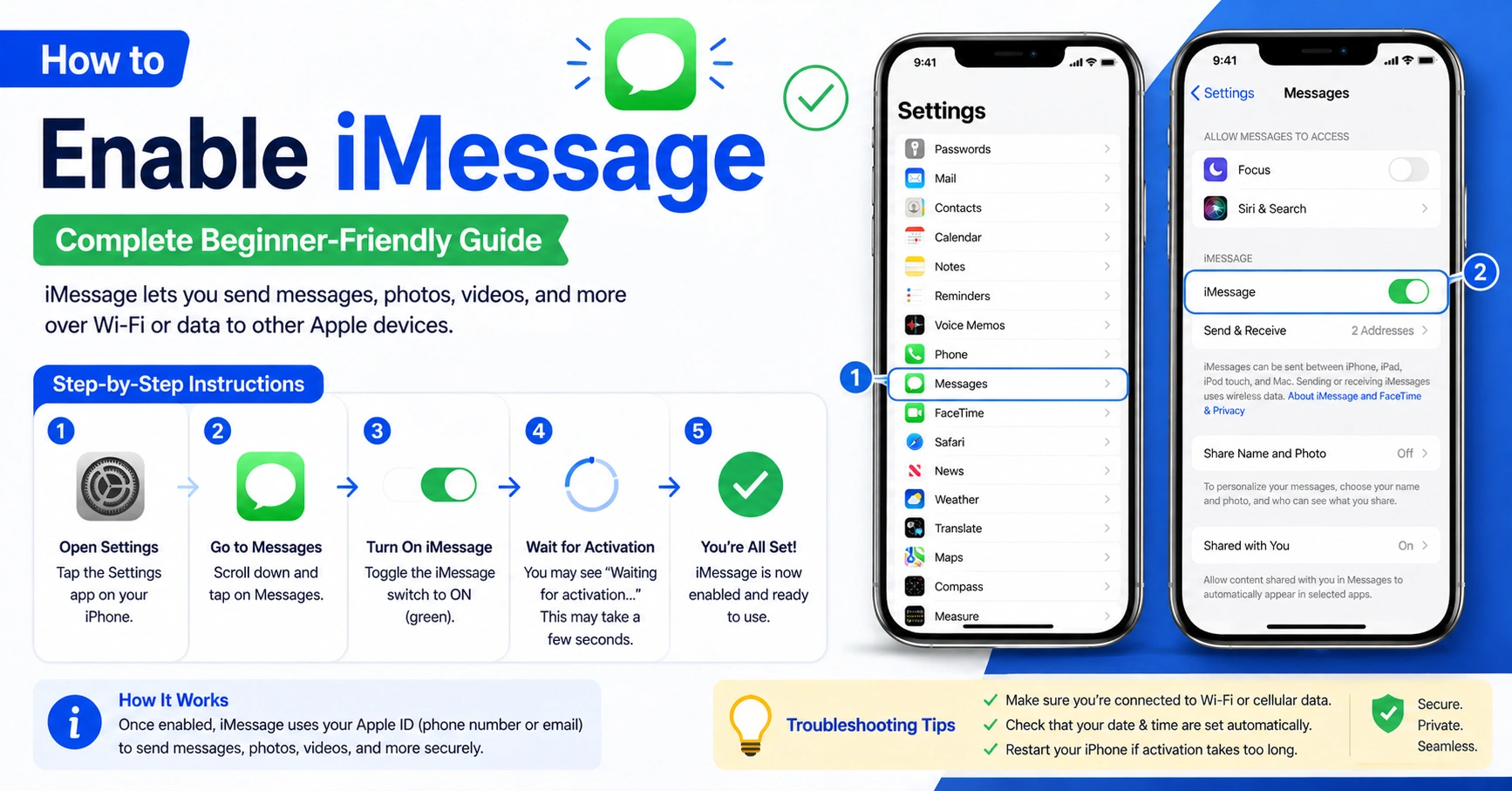
Follow these simple steps:
- Open Settings
- Scroll down and tap Messages
- Toggle iMessage ON
- Wait for activation (may take a few seconds)
That’s it! Once it turns green, iMessage is active.
If you’re like me, you might see a short “Waiting for activation” message. Don’t worry—that’s normal.
How to Enable iMessage on iPhone 16, 15, 14, and 13
No matter which model you have—iPhone 16, iPhone 15, iPhone 14, or iPhone 13—the steps are the same.
Here’s a quick reference table:
| iPhone Model | Steps to Enable iMessage |
|---|---|
| iPhone 16 | Settings → Messages → Turn ON |
| iPhone 15 | Same steps |
| iPhone 14 | Same steps |
| iPhone 13 | Same steps |
So if you’re searching how to enable iMessage on iPhone 16 or how to enable iMessage on iPhone 13, the process doesn’t change.
Apple keeps things simple, which is helpful.
How to Enable iMessage on My iPhone (First-Time Setup)
If you’re asking how to enable iMessage on my iPhone, it usually means you’re setting up your phone for the first time.
After turning iMessage ON, do this:
- Tap Send & Receive
- Sign in with your Apple ID
- Select your phone number and email
- Choose the default sender
This step is important. I once skipped it, and messages didn’t send properly.
Here’s what it controls:
| Setting | Purpose |
|---|---|
| Apple ID | Syncs messages |
| Phone Number | Main contact |
| Backup contact | |
| Sender | Default identity |
How to Enable iMessages on iPhone Properly
Some people search how to enable imessages on iPhone (plural), but it’s the same thing.
To ensure everything works:
- Keep Wi-Fi or data ON
- Make sure date and time are correct
- Stay signed into your Apple ID
If these settings are wrong, activation may fail.
How to Enable iMessage on Mac
Now let’s look at how to enable iMessage on Mac.
If you use a MacBook or iMac, syncing messages is very useful.
Steps:
- Open the Messages app
- Click Sign In
- Enter your Apple ID
- Go to Settings (Preferences)
- Enable iMessage
I love using iMessage on Mac because typing is faster with a keyboard.
How to Enable iMessage on MacBook (Quick Guide)
If you’re specifically searching how to enable iMessage on MacBook, here’s a quick table:
| Step | Action |
|---|---|
| 1 | Open Messages |
| 2 | Sign in |
| 3 | Go to Preferences |
| 4 | Enable iMessage |
Make sure your Mac and iPhone use the same Apple ID.
Common Problems When Enabling iMessage
Even though how to enable iMessage is simple, issues can happen.
Here are common problems:
| Problem | Cause | Fix |
|---|---|---|
| Activation stuck | Network issue | Restart device |
| Not sending | Apple ID issue | Sign out/in |
| Wrong number | Settings error | Update Send & Receive |
I once had an activation problem that lasted hours. Restarting fixed it instantly.
How to Fix iMessage Not Activating
If you tried how to enable iMessage on iPhone and it’s not working, try this:
- Restart your iPhone
- Check internet connection
- Turn iMessage OFF and ON
- Update iOS
- Sign out and back into Apple ID
Most problems get solved with these steps.
Tips to Use iMessage Better
After learning how to enable iMessage, here are some tips:
- Turn on Read Receipts
- Use Tapback reactions
- Send voice messages
- Share location easily
These small features make a big difference.
iMessage vs SMS: Which Is Better?
Once you know how to enable iMessages, you’ll notice the difference quickly.
| Feature | iMessage | SMS |
|---|---|---|
| Speed | Fast | Slower |
| Media | HD | Compressed |
| Security | Encrypted | Basic |
| Features | Many | Limited |
iMessage clearly wins in most areas.
Is iMessage Free to Use?
Yes, iMessage is free.
But there’s a catch:
- Uses Wi-Fi or mobile data
- May use data if not on Wi-Fi
Still, it’s much cheaper than SMS in most cases.
Security and Privacy in iMessage
One reason to learn how to enable iMessage is security.
iMessage uses end-to-end encryption. That means:
- Only you and the receiver can read messages
- Not even Apple can see them
This makes it safer than regular SMS.
When Should You Use iMessage?
Use iMessage when:
- Messaging other Apple users
- Sending photos/videos
- Group chatting
Use SMS when:
- Contact uses Android
- No internet connection
FAQs About How to Enable iMessage
1. Why can’t I enable iMessage on my iPhone?
It’s usually due to internet issues or Apple ID problems. Check both and try again.
2. How long does iMessage activation take?
Usually a few seconds, but sometimes up to 24 hours.
3. Do I need an Apple ID to enable iMessage?
Yes, an Apple ID is required for full functionality.
4. Can I use iMessage without Wi-Fi?
Yes, but you’ll need mobile data.
5. Why is my iMessage green instead of blue?
Green means SMS. Blue means iMessage is working.
6. Can I enable iMessage on multiple devices?
Yes, just sign in with the same Apple ID.
Final Thoughts: Get Started with iMessage Today
Now you fully understand how to enable iMessage across devices. The process is simple, but the benefits are huge.
From my experience, once you turn on iMessage, texting becomes smoother and more enjoyable. You get better quality messages, faster delivery, and useful features that SMS just can’t match.
If you haven’t already, go ahead and enable it now. It only takes a minute, but it improves your daily communication a lot.
And if you ever run into problems, just revisit this guide—you’ll know exactly what to do.