
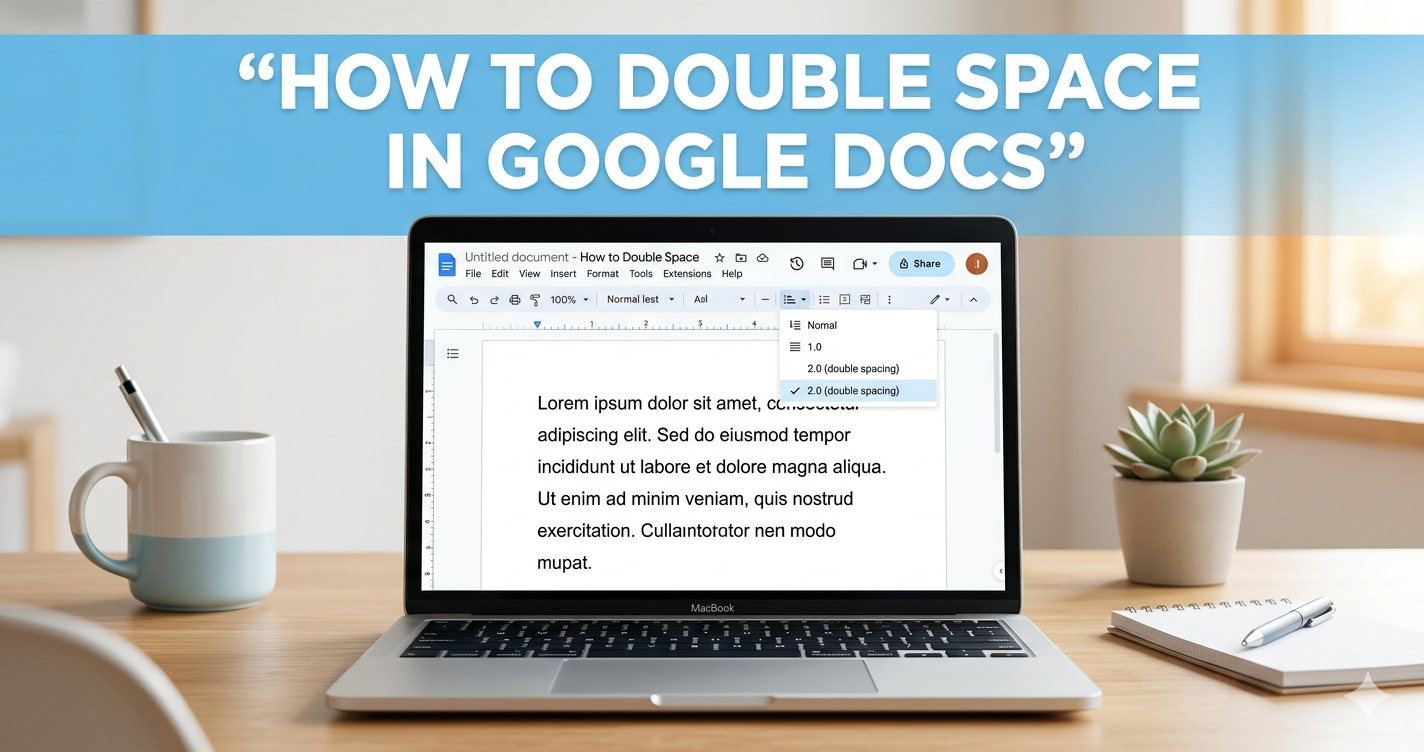
If you write essays, blog posts, or school work, you will often need proper formatting. One common format is double spacing. It makes your text easier to read and gives your document a clean look.
In this guide, you will learn exactly how to double space in Google Docs step by step. I’ll also show you how to do it on mobile, iPad, and even how it compares to other tools. Everything is explained in simple language, so anyone can follow along easily.
What Does Double Spacing Mean?
Double spacing means there is extra space between each line of text. Instead of lines sitting close together, they have more breathing room.
This format is often used for:
- School assignments
- Essays
- Research papers
- Professional documents
When I first started writing online, I didn’t think spacing mattered much. But once I switched to double spacing, my content became much easier to read. It also looked more professional.
Why You Should Use Double Spacing
Double spacing is not just about looks. It serves real purposes.
It helps readers focus better. It also gives teachers or editors space to add comments. Many institutions require it.
Here are the key benefits:
| Benefit | Explanation |
|---|---|
| Better readability | Text feels less crowded |
| Easy editing | Space for notes and corrections |
| Professional look | Clean and organized layout |
| Required format | Many schools demand it |
So learning how to double space in google docs is an important basic skill.
How to Double Space in Google Docs (Desktop Method)
Let’s start with the easiest way. This method works on a laptop or desktop browser.
First, open your document in Google Docs.
Then follow these steps:
- Select the text you want to format
- Click on “Format” in the top menu
- Go to “Line & paragraph spacing”
- Click on “Double”
That’s it. Your text will instantly change.
If you want to double space the whole document, press Ctrl + A first. Then apply the same steps.
This is the fastest way to learn how to do double space in google docs without confusion.
Quick Shortcut for Double Spacing
If you like working faster, there is a shortcut.
After selecting your text:
- Press Ctrl + 2 (Windows)
- Press Command + 2 (Mac)
This instantly applies double spacing.
I personally use this all the time. It saves a lot of clicks when editing long articles.
How to Make Double Space the Default Setting
Sometimes you want every new document to use double spacing automatically.
Here’s how to do it:
- Open a blank document
- Set line spacing to “Double”
- Click “Format” → “Paragraph styles”
- Select “Normal text” → “Update to match”
- Click “Options” → “Save as my default styles”
Now every new file will already be double spaced.
This is very helpful if you frequently write essays or academic content.
How to Double Space Only Part of a Document
You don’t always need to apply double spacing everywhere.
For example:
- Keep headings single spaced
- Make body text double spaced
To do this:
- Highlight only the paragraph you want
- Apply double spacing
This gives you better control over formatting.
When I write blog posts, I often mix spacing styles to improve readability.
How to Add Double Space Between Paragraphs
Double spacing affects lines. But paragraph spacing is different.
If you want space between paragraphs, do this:
- Go to “Format”
- Click “Line & paragraph spacing”
- Select “Add space after paragraph”
Now your document will look cleaner and more structured.
How to Double Space in Google Docs Mobile
Many people now use phones for editing. So let’s cover that.
Open the Google Docs app and follow these steps:
- Open your document
- Tap the pencil (edit icon)
- Select your text
- Tap the “A” formatting icon
- Go to “Paragraph”
- Change line spacing to 2.0
This is how you double space in google docs mobile quickly.
How to Double Space in Google Docs on Phone
The steps are similar, but here’s a clearer breakdown.
| Step | Action |
|---|---|
| 1 | Open document |
| 2 | Tap edit icon |
| 3 | Highlight text |
| 4 | Tap formatting menu |
| 5 | Set spacing to 2.0 |
This method works on both Android and iPhone.
So now you know how to double space in google docs on phone without needing a computer.
How to Double Space in Google Docs on iPad
Using an iPad feels closer to a desktop experience.
Here’s what to do:
- Open your document in the app
- Highlight your text
- Tap the format icon
- Select “Line spacing”
- Choose 2.0
That’s all.
This is the easiest way to learn how to double space in google docs on ipad.
Common Mistakes to Avoid
Even simple formatting can go wrong.
Here are some mistakes I see often:
- Forgetting to select text before applying spacing
- Adding extra line breaks instead of proper spacing
- Mixing spacing styles without reason
Avoiding these will help your document look clean and professional.
Google Docs vs Microsoft Word (Spacing Comparison)
Some users switch between tools. So it helps to understand the difference.
| Feature | Google Docs | Microsoft Word |
|---|---|---|
| Ease of use | Very simple | Slightly complex |
| Default spacing | 1.15 | 1.08 |
| Shortcut | Ctrl + 2 | Ctrl + 2 |
| Cloud saving | Yes | Optional |
If you’re wondering about how to double space in word on google docs, just remember they are different tools. But the concept is the same.
When Should You Use Double Spacing?
Not every document needs double spacing.
Use it for:
- School essays
- Assignments
- Research papers
Avoid it for:
- Resumes
- Short notes
- Social media content
Knowing when to use it is just as important as knowing how.
Real Example: Before and After
Let’s say you wrote a long essay.
Before double spacing:
- Text looks crowded
- Hard to read
After double spacing:
- Clean layout
- Easy to follow
When I started blogging, this one change improved my content quality instantly.
Advanced Tip: Custom Line Spacing
You don’t always have to use exact double spacing.
You can set custom spacing like:
- 1.5
- 2.5
To do this:
- Go to “Line & paragraph spacing”
- Click “Custom spacing”
- Enter your value
This gives you full control.
FAQs
1. How do I double space in Google Docs quickly?
Use the shortcut Ctrl + 2 after selecting your text.
2. Can I double space the entire document at once?
Yes. Press Ctrl + A to select all text, then apply double spacing.
3. Why is my spacing not changing?
You may not have selected the text properly. Try again.
4. Is double spacing required for all documents?
No. It is mainly used for academic and formal writing.
5. Can I use double spacing on mobile?
Yes. The Google Docs app supports it easily.
6. What is the best spacing for readability?
Double spacing is great for long texts, while 1.5 works well for general use.
Final Thoughts
Now you fully understand how to double space in google docs across all devices. Whether you are using a laptop, phone, or tablet, the steps are simple once you know where to look.
Double spacing may seem like a small detail, but it makes a big difference. It improves readability, gives your document a professional feel, and helps meet academic standards.
If you write often, I strongly recommend setting it as your default style. It saves time and keeps your work consistent.